For almost two years, my phone wallpaper was the same blurry mountain photo I picked on the first night I owned the phone. It was just there, like a pen on a desk.
Then a friend glanced at my screen last month and said, “Did you just buy that phone? It looks exactly like the day you got it.” She was joking, but it stung a little. I had never once tried to make the device feel like mine.
So I set a small challenge: change wallpaper every single day for 30 days. That is when I opened the Google Play Store and chose to download Zedge Wallpapers & Ringtones, made by Zedge, Inc.
I wanted one app with lots of pictures to pick from, and it was free to try. Here is how the month went, including the parts that annoyed me.
The wallpaper library is bigger than I expected
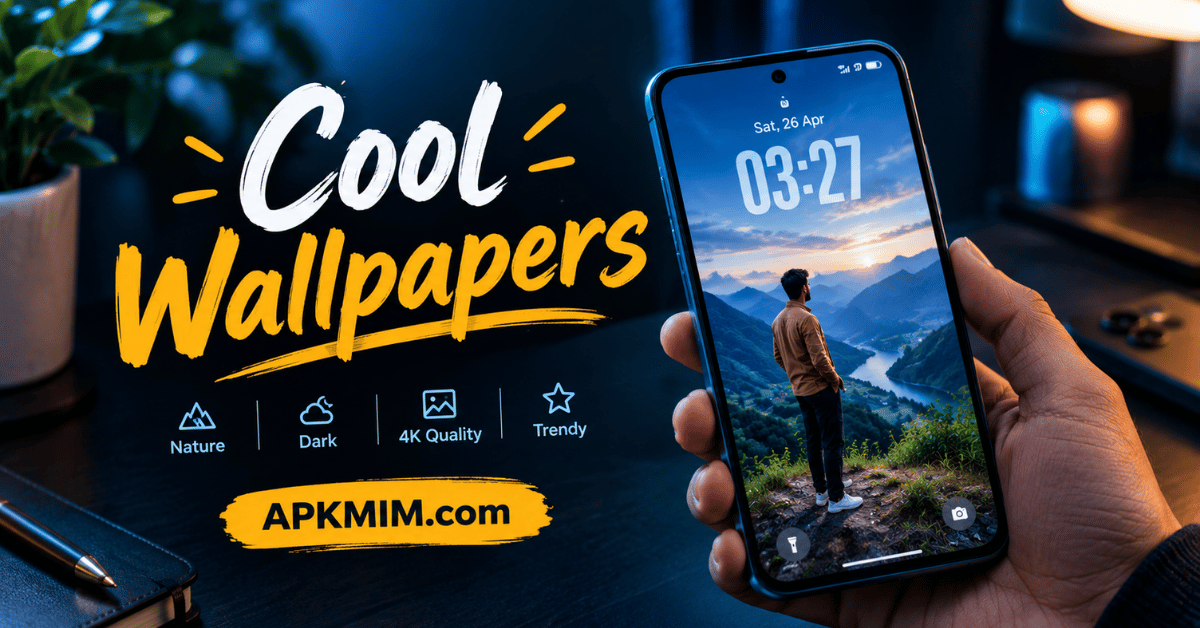
Zedge gives you a huge pile of wallpapers to browse, and plenty of them are free to use, with many in sharp Full HD or even 4K. There are collections like urban art, sci-fi, space, and anime, along with landscapes, nature, and abstract art. I stayed with nature, space, and abstract pieces most of the month.
This matters because variety keeps a daily change from feeling like a chore. On day one I scrolled for forty minutes and picked nothing. My tip is to save a few favorites each weekend, so you are not hunting every morning.
My mistake was picking whatever looked pretty in the small preview. Thumbnails hide a lot, so open the full preview before you commit.
Filters and stickers before you set anything
Before you set a wallpaper, you can add filters and stickers to customize it. I put a soft warm filter on a gray beach photo, and it suddenly felt cozy. On day six, I added stickers, and my phone briefly looked like a school notebook.
This matters because a small filter can rescue an almost right wallpaper. The mistake is stacking too much. Pick one filter, maybe one small sticker, and stop there.
Choosing Where Your Wallpaper Goes
Each wallpaper can go on your lock screen, your home screen, or both at once, whichever you prefer. You can also set wallpapers to rotate at chosen intervals. For the first week I changed mine by hand each morning with my coffee.
Around day nine, I tried rotation and let the phone swap images by itself. It is great when you feel lazy, but you lose the ritual of choosing. I also mixed very bright and very dark images in one rotation, which felt messy.
Here was my first big surprise. A night sky that looked stunning in the app looked different on my lock screen because the clock landed right on the brightest star. I could barely read the time until I picked another image.
My tip is to always judge a wallpaper with the clock and icons in mind.
Parallax wallpapers add a little depth
Parallax wallpapers create a 3D depth effect, so the screen feels more immersive when the phone moves. I tried a layered forest scene and tilted my phone back and forth like a kid with a new toy. It made the phone feel more alive.
My tip is to pick scenes with clear foreground and background layers. Busy images look confusing when they shift.
Dynamic 24H wallpapers follow your day
Dynamic 24H wallpapers follow the clock on your phone, so the scene shifts from a bright morning look to a darker night version as the day goes on. I used a hilltop scene, and watching the light turn orange in the evening was my favorite moment of the month.
It matters because you get variety without doing any work. The mistake to avoid is a wrong phone clock, since the scene follows local time. Check that first.
Dual wallpapers save time
With dual wallpapers, a single tap sets a lock screen and a home screen that were designed to go together.
Here is my funny moment. One dark pair swallowed my home screen icons so completely that I spent a full minute hunting for my camera app. Dark wallpapers need a simple layout or light icons.
Live wallpapers bring video to the home screen
Live wallpapers put a short video effect on your home screen. According to the developer, they do not use up your battery and only play one time when the home screen wakes up. That is the developer’s claim, and results may vary by phone.
I did not run a proper battery test, so I cannot confirm it either way. Before you commit, keep one live wallpaper for a single day and see how your own battery and speed feel.
AI tools are only one part of the app
There is an AI wallpaper maker where you type a description and it builds a wallpaper for you. The app also has AI photo styles and filters, plus an Audio AI tool that turns a typed idea into a ringtone or notification sound.
AI content is only one part of the library. If you prefer work from creators, use the search and filter options. A common mistake is typing a vague prompt, so be specific.
Zedge covers sound too, with ringtones, alarm tones, and notification sounds. You can even set a ringtone for individual contacts, which I did for my sister so I know it is her without looking.
The honest downsides
The app contains ads, and it has in app purchases and premium offers. I would not call it perfect. Some Play Store reviewers say there are too many ads, and one said their phone froze after closing an ad.
I did not see a freeze, but the ads did interrupt me a few times. Other reviewers feel there is too much AI content, and one user reported a connection error while searching.
The developer replied to these reviews and suggested reinstalling the app, using the filters, or contacting support. Please treat these as user reports, not facts about every phone.
Privacy and safety: check before you install
According to the data safety page on Google Play, details like how you use the app, technical performance info, and device identifiers may be passed on to outside companies. The same page lists location and personal info among the things the app may collect. On the positive side, it says data is encrypted in transit and that you can request data deletion.
I am not a privacy expert, so I will not tell you what to think. Read the data safety section and the privacy policy before you download it, and decide what you are comfortable with.
The app is rated Teen, with a note that content is diverse. If younger kids use it, parents should supervise.
Day 30 on my phone
By day 30, I had stopped thinking of my wallpaper as a setting and started thinking of it as a mood. Not every day was smooth, and the ads tested my patience. Still, my friend noticed the change right away, and I told her I just got bored, which was reason enough.