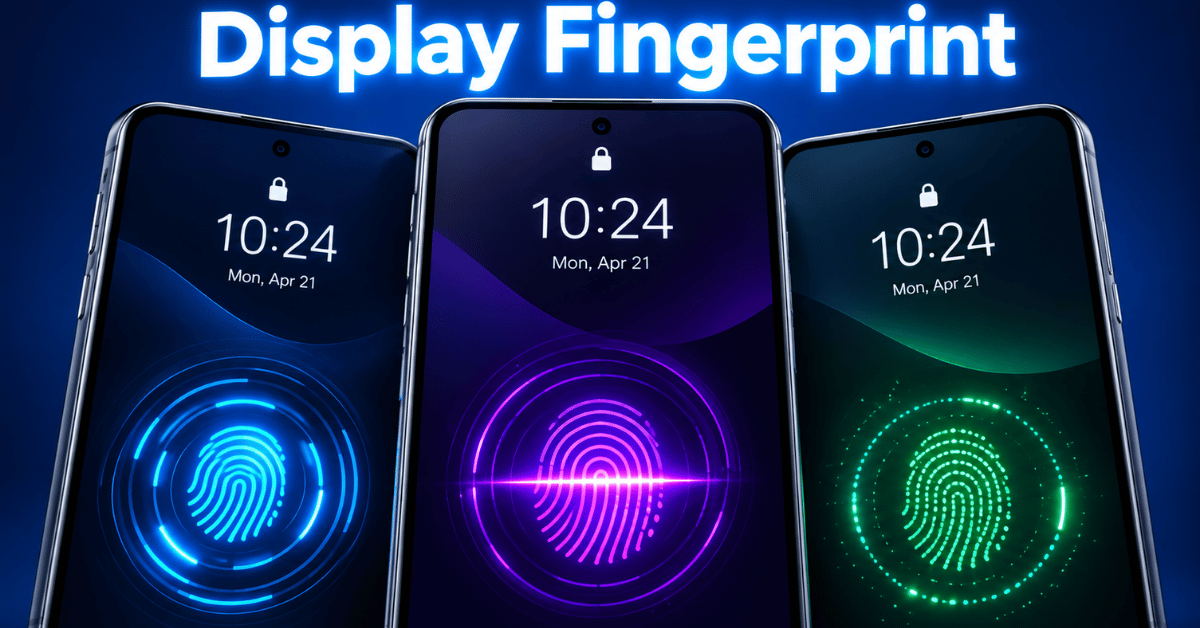
A few weeks ago, I was at a cafe with a friend when his phone lit up with a glowing, pulsing scanner effect. It looked like a prop from a science fiction movie. Meanwhile, my own lock screen was a plain photo I hadn’t changed in almost two years.
Before we go further, one thing needs to be clear. The app I tried is only decorative. It is not real biometric security, it does not read your finger, and it does not replace your phone’s actual lock settings.
I asked my friend what he was using, and he named Fingerprint Animation Lock by Wallet Passes Alliance. I was skeptical, because personalization apps are often hit or miss. Still, my phone screen felt boring, so I was curious.
That evening I decided to download it from the Google Play Store and test it properly. I have now used it for a few weeks, and this is my honest experience, including the annoying parts.
Live fingerprint animation designs
These are the heart of the app. The designs move with a bright, scanner style glow, so your lock screen feels active instead of frozen. A still image gets ignored after a day, but a soft pulse catches your eye every time the phone wakes up.
My mistake was picking the busiest design first. It looked exciting for two days and then felt loud. Choose something calm and see if you still like it after a week. I now rotate between two designs depending on my mood.
3D fingerprint themes
These themes add depth and glow, so the fingerprint lines seem to rise slightly off the screen. That matters because flat designs can melt into a busy wallpaper, while depth gives the eye a place to land.
My tip is to check it at the angle you normally hold your phone. Up close I loved it, but on my desk it looked different.
HD animation backgrounds
The app also has higher quality animated backgrounds that look sharper and cleaner on a modern display. This matters because soft, blurry visuals stand out on a good screen. It is a small upgrade, but you see it every time you check the time.
A common mistake is mixing a sharp animated background with a messy set of widgets on the lock screen. I did exactly that and the whole thing looked crowded. Clearing the extras fixed it.
Scanner-inspired styles
These themes lean into a futuristic, tech feel that reminds me of a control room. They matter because you can match the look to your own taste, and I like dark, moody screens.
One tip is to match the color to your phone case or icon pack. One mistake I made was choosing a style that fought with my clock text, which made the time harder to read.
Touch effect
There is a fun visual effect when you touch the screen. It adds a small playful reaction, and that tiny bit of motion makes the phone feel more personal.
Here is my favorite funny moment. My young cousin saw the glowing spot, pressed it over and over, and waited for the phone to open. He looked at me like I had broken something.
My tip is to tell family members that it is only a visual theme, so nobody gets confused.
How the setup flow works
Setup is simple. You browse the collection, pick a design, preview the effect, apply it, and then check how it looks when the phone wakes up. The whole thing took me a few minutes.
My tip is to preview before applying, and check the result in both dim and bright light. Mine looked amazing in the preview, but with my light colored wallpaper, the glow almost vanished in sunlight. I had to switch to a darker photo. Try two or three designs before settling, since the preview takes only seconds.
This is not real security
I want to repeat this clearly. A decorative animation is just a picture with motion. Your phone’s real fingerprint, PIN, or password lock is what actually controls who gets in.
The app does not scan anything and does not protect your phone. Keep your real lock method turned on at all times, and treat the animation as a visual theme only. If you ever turn your real lock off because the animation looks convincing, that is a mistake.
Please do not use it to make people think your phone is secured or scanning them. Keep the focus on how the screen looks.
The honest limitations
The app contains ads and has in app purchases, so expect some interruptions. On the Play Store, it has a rating around 4.0 from about 2.4 thousand reviews.
Reviews are mixed, and these are user reports, not facts about every phone. One reviewer called it just a useless wallpaper app. Another said it showed a settings saved message, but the effect did not work for them.
Someone else called it a very good app. The developer replied to a complaint and suggested contacting support. For me, it worked, but I would not call the experience perfect. I would suggest testing on your own phone before you decide.
Privacy and what the Play Store says
The data safety section says the app may share device or other IDs with third parties. It also says no data is collected, that data is encrypted in transit, and that data cannot be deleted.
Those lines can feel like they pull in different directions, and I cannot tell you how they fit together. I am not calling the app private. Please read the data safety section and the privacy policy yourself and decide what you are comfortable with.
Checking the app before you install it
Before you download any app that changes how your phone looks, spend five minutes on the listing. Read recent reviews, look at the ad and purchase notes, and check the privacy details.
A quick look saved me from a few surprises, like knowing about the ads before the first one popped up.
Where my phone screen stands now
I still use the animation, though I swapped designs twice. My lock screen finally feels like mine, and my friend stopped smirking at my plain photo.
Would I recommend it? If you only want a fun look and accept the ads, it is worth a try. Just keep your real lock on and your expectations realistic. Small tweaks like this can make a phone feel fresh without much effort.