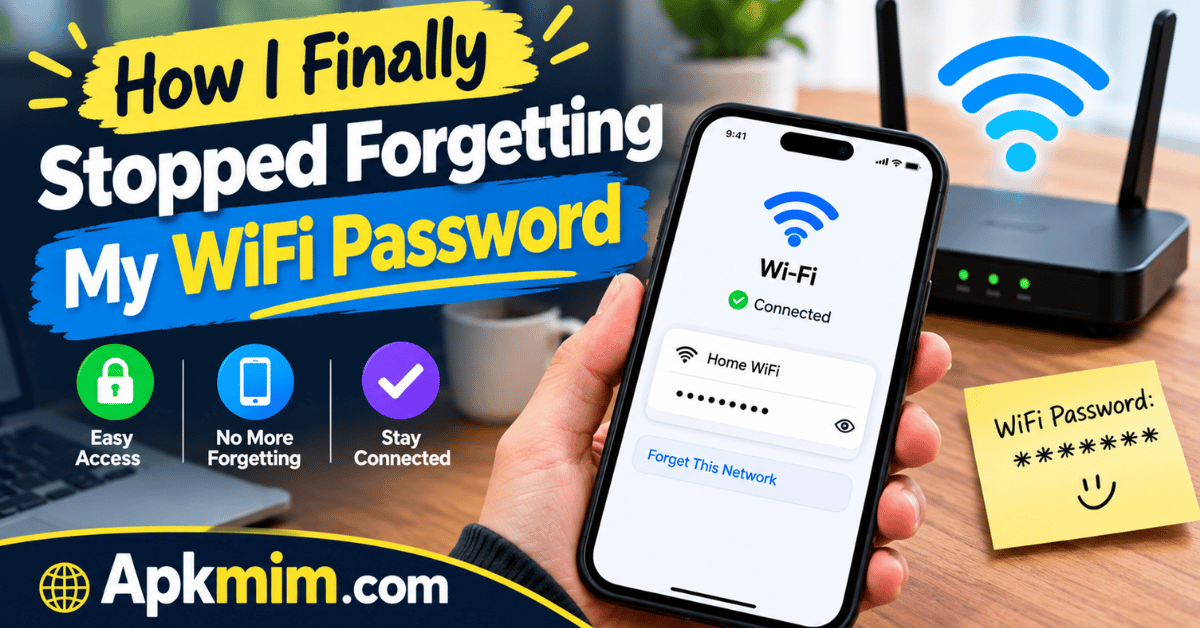
Last spring, my sister visited with her laptop and asked for the WiFi password. I opened my mouth, and nothing came out. I write about tech, and I could not remember the password to my own network.
So I crawled behind the TV and read the sticker on the router. It was wrong, because I had changed the password two years earlier and forgotten. My sister waited patiently, which somehow made it worse.
That day I decided to fix this properly. Here is what helped, in the order I wish I had tried it. Everything below is for your own network, or one you have permission to manage.
Check the Router Label
Many routers have a sticker on the back or bottom with the default network name and password printed on it. It takes ten seconds and needs no logins. If nobody ever changed the password, the sticker may be the whole answer.
If the sticker has worn off, check the router maker’s website. Many makers let you download the manual for your exact model, and it often explains where the label details and login steps are found.
Look for labels like network name, SSID, or WiFi key. Type it slowly, because O and 0 or l and 1 can look alike. If you or someone else changed the password, the sticker is outdated, and I learned that the embarrassing way.
Tip: if the sticker fails after two careful tries, stop retyping and move to the next idea.
Check a Phone That Is Already Connected
If your phone is already on the network, it remembers the password even when you do not. On many Android phones, you can share the saved network through a QR code in the WiFi settings after unlocking the phone. Some phones also show the password as text.
The exact steps vary by phone brand and Android version, so open WiFi settings and look at the network you are connected to. Tap it, or the small gear icon beside it, and look for a share option. On my phone, that option was hidden behind the gear icon for a week.
Common mistake: expecting every phone to show the text. Mine showed only the QR code, so I scanned it with a second phone to join. That still solved my problem.
Sign In to Your Router Settings Page
This is where the WiFi password actually lives. As the owner, you can sign in to the router settings page using the address and login details given by the router maker or your internet provider. They are usually in the manual or the provider’s paperwork, and once inside you look for a wireless or WiFi section to see or change the password.
It matters because it is the real source, not a sticker or a guess. My mistake was changing the admin login once and forgetting that too. Tip: take a screenshot of a page before changing anything, so you can undo a slip.
Keep It in a Password Manager or Safe Note
A password manager is an app that stores your passwords behind one strong master password. A locked note in a trusted app can work too. It matters because old habits, like a sticky note on the monitor, are easy for other people to see.
I used to text the password to myself, then lost that chat after a phone reset. Now I save the network name, password, and router login in one entry.
Common mistake: saving it somewhere public, like a shared family chat, an open document, or a note taped near the front window. Anyone who sees it can join your network.
Whose Network Is It?
Everything in this article is for your own network, or one you have permission to manage. Trying to find or guess the password of someone else’s WiFi without permission is wrong, and it is illegal in many places. If it is not your network, ask the owner, or use a public network that is open to everyone.
Choose a Password You Can Actually Remember
A passphrase is a few unrelated words strung together, with a number or two. It matters because length helps more than clever symbols. Something like teapot river lantern 47 is easy to remember and hard to guess, but please make your own.
If your router rejects spaces, run the words together. Avoid phone numbers, birthdays, and names, because they are easy to guess.
I once picked my street name plus my birth year, felt clever, and rewrote it the next morning. Tip: say the passphrase out loud twice, then type it once, and it sticks.
Share It With Guests Safely
Many routers can create a guest network, which is a separate WiFi name with its own password. It matters because guests get internet without your main password, and their devices stay away from your computers and printers. If your router supports it, you can turn it on in the settings page.
You can also share through a QR code from your phone, so nobody reads out a password at all. Once I gave the main password to a whole party and later counted fourteen devices I did not recognize. Tip: change the guest password now and then.
After You Change the Password
Once the password changes, every device using the old one drops off. Reconnect your phones and laptops first, then update smart TVs, printers, speakers, cameras, and other gadgets. It matters because a forgotten device fails quietly.
Funny part: my TV reconnected fine, but my niece complained that her old tablet was broken. It had been in a drawer for months, and it woke up still trying the old password. The printer did the same, and I blamed the printer for three days.
Save the new password in one safe place and delete the old entry, so you never find two versions later.
A Small Tool I Keep for Travel
When I travel and need a public hotspot, I try the free Android app WiFi Map by WiFi Map LLC from the Google Play Store. It shows a community made map of WiFi hotspots, has offline maps for downloaded regions, and includes a WiFi analyzer and a free speed test.
It contains ads, some users report bugs, and coverage varies by city. It is meant only for public or community shared hotspots, not private networks, so connect only to networks you are allowed to use and check the data safety section on the Play Store before installing.
These days, when someone asks for the password, I just hold up my phone and smile.